
Video Optimiser
Batch compress, resize and convert videos.
Reduce the size of your videos while maintaining excellent visual quality. Convert them to more efficient codecs such as H.265 (HEVC), reduce the resolution when needed, or compress them to fit size limits for email, WhatsApp, and other sharing platforms.
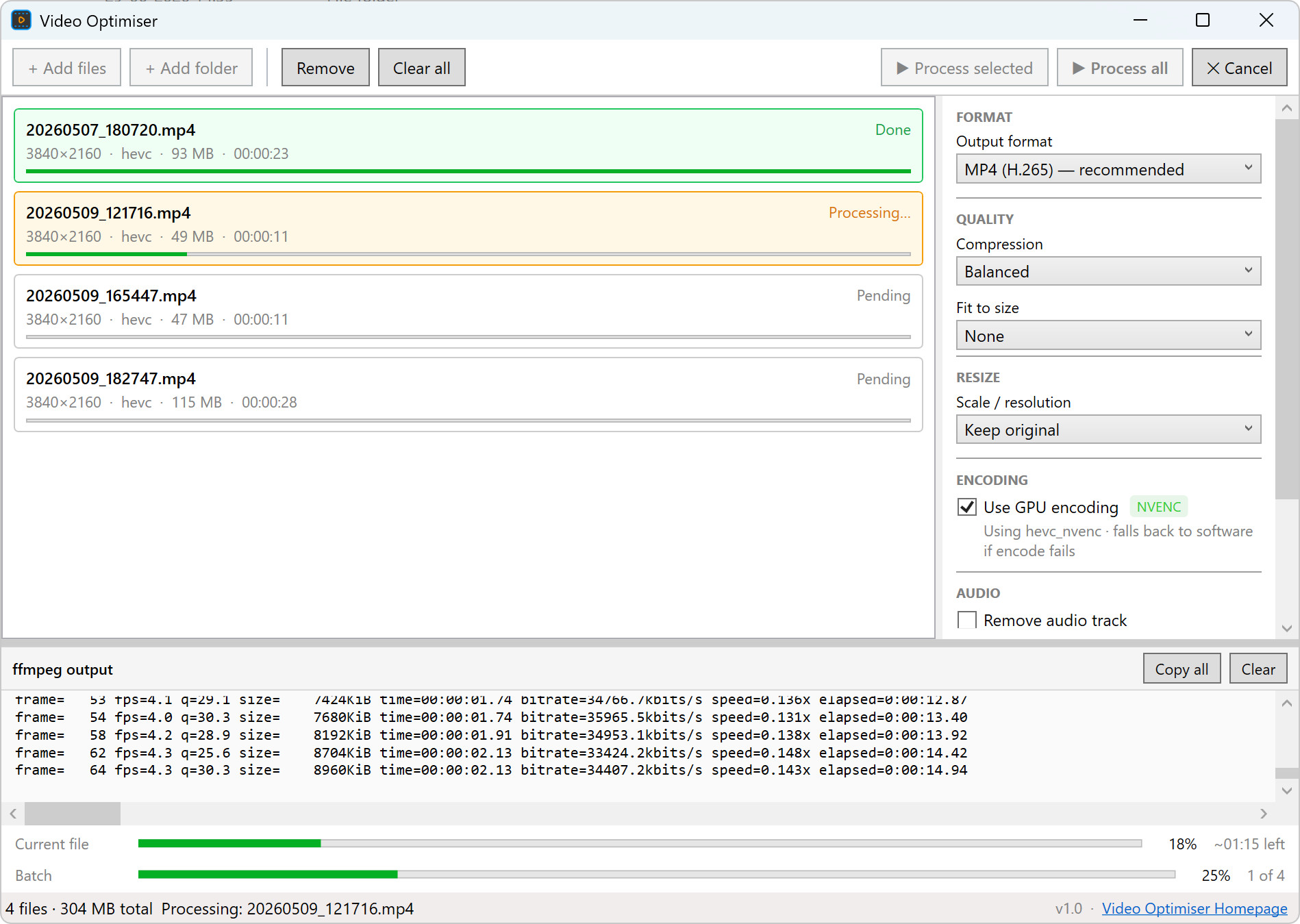
Video Optimiser is a Windows desktop utility for batch compressing, resizing and converting video files. Simply add your videos or entire folders, choose your output settings, and let the application process everything automatically.
Whether you need smaller videos for email, WhatsApp, or want to convert large collections into another format, Video Optimiser makes the process fast and simple. GPU hardware acceleration is supported on Nvidia, Intel and AMD graphics cards.
Features
The standard download requires .NET 8.
The portable download includes .NET 8 and runs without any additional installation.
System Requirements
Operating System: Windows 10 or Windows 11
Framework: .NET 8 (standard download only)
Optional: Nvidia, Intel or AMD GPU for hardware accelerated encoding.
FAQ
What is Video Optimiser?
Video Optimiser is a Windows application and a GUI wrapper around FFmpeg that lets you batch compress, resize and convert videos. It reduces video sizes by converting them to a more efficient codec, reducing their dimensions, or both.
Who should use Video Optimiser?
If you have a large video library taking up too much storage, Video Optimiser can help. Select a bunch of videos or entire folders, choose your settings, and let it process everything in one go. It's also useful for creating videos that fit within email or WhatsApp size limits.
Why not just use HandBrake?
HandBrake is a Swiss army knife of FFmpeg wrappers. It exposes a plethora of options. Video Optimiser is meant to do one thing: compress your videos, reduce their size, and optimise storage space. It is supposed to be a simple tool where you select a bunch of videos and process them with one click. If you want finer control over the encoding process, you should definitely use HandBrake or the FFmpeg command line.
Is Video Optimiser free?
Yes, Video Optimiser is completely free to use for both personal and commercial purposes. I built it to optimise my own video collection and decided to share it with the world. If you find it useful, that's a bonus!